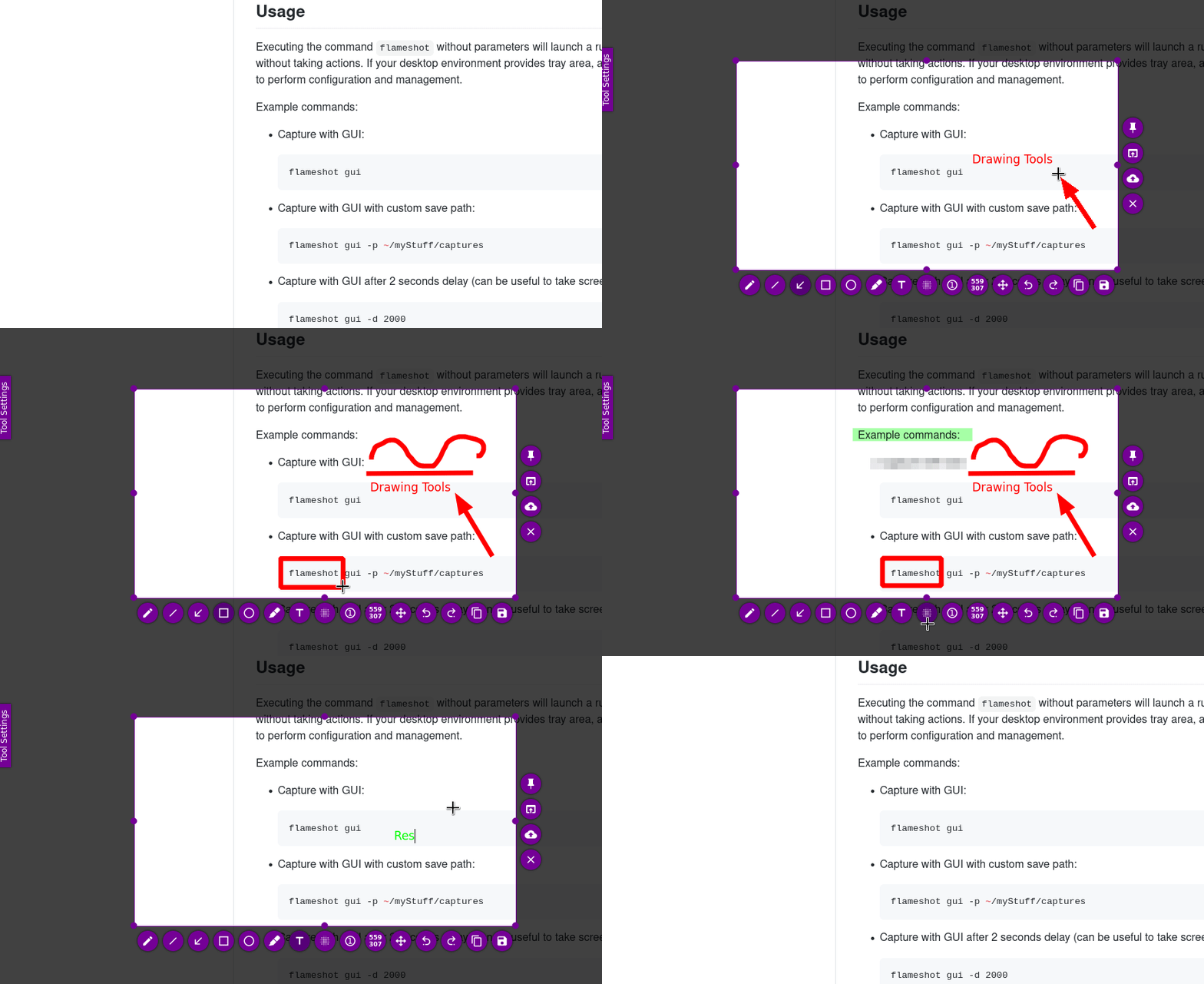
- Customizable appearance.
- Easy to use.
- In-app screenshot editing.
- DBus interface.
- Upload to Imgur.
Executing the command flameshot without parameters will launch a running
instance of the program in the background without taking actions.
If your desktop environment provides tray area, a tray icon will also
appear in the tray for users to perform configuration and management.
Example commands:
-
Capture with GUI:
-
Capture with GUI with custom save path:
flameshot gui -p ~/myStuff/captures -
Capture with GUI after 2 seconds delay (can be useful to take screenshots of mouse hover tooltips, etc.):
-
Fullscreen capture with custom save path (no GUI) and delayed:
flameshot full -p ~/myStuff/captures -d 5000 -
Fullscreen capture with custom save path copying to clipboard:
flameshot full -c -p ~/myStuff/captures -
Capture the screen containing the mouse and print the image (bytes) in PNG format:
-
Capture the screen number 1 and copy it to the clipboard:
In case of doubt choose the first or the second command as shortcut in your favorite desktop environment.
A systray icon will be in your system's panel while Flameshot is running. Do a right click on the tray icon and you'll see some menu items to open the configuration window and the information window. Check out the About window to see all available shortcuts in the graphical capture mode.
On Windows, flameshot.exe will behave as expected for all supported command-line arguments,
but it will not output any text to the console. This is problematic if, for example, you are
running flameshot.exe -h.
If you require console output, run flameshot-cli.exe instead. flameshot-cli.exe is a minimal wrapper around flameshot.exe that ensures all stdout is captured and output to the console.
You can use the graphical menu to configure Flameshot, but alternatively you can use your terminal or scripts to do so.
-
Open the configuration menu:
-
Show the initial help message in the capture mode:
flameshot config --showhelp true -
For more information about the available options use the help flag:
You can also edit some of the settings (like overriding the default colors) in the configuration file.
Linux path: ~/.config/flameshot/flameshot.ini.
Windows path: C:\Users\{YOURNAME}\AppData\Roaming\flameshot\flameshot.ini.
When copying over the config file from Linux to Windows or vice versa,
make sure to correct the savePath variable,
so that the screenshots save in the right directory on your desired file system.
These shortcuts are available in GUI mode:
| Keys | Description |
|---|---|
| P | Set the Pencil as paint tool |
| D | Set the Line as paint tool |
| A | Set the Arrow as paint tool |
| S | Set Selection as paint tool |
| R | Set the Rectangle as paint tool |
| C | Set the Circle as paint tool |
| M | Set the Marker as paint tool |
| T | Add text to your capture |
| B | Set Pixelate as the paint tool |
| ←, ↓, ↑, → | Move selection 1px |
| Shift + ←, ↓, ↑, → | Resize selection 1px |
| Ctrl + Shift + ←, ↓, ↑, → | Symmetrically resize selection 2px |
| Esc | Quit capture |
| Ctrl + M | Move the selection area |
| Ctrl + C | Copy to clipboard |
| Ctrl + S | Save selection as a file |
| Ctrl + Z | Undo the last modification |
| Ctrl + Shift + Z | Redo the next modification |
| Ctrl + Q | Leave the capture screen |
| Ctrl + O | Choose an app to open the capture |
| Ctrl + Return | Commit text in text area |
| Ctrl + Backspace | Cancel current selection |
| Return | Upload the selection to Imgur |
| Spacebar | Toggle visibility of sidebar with options of the selected tool, color picker for the drawing color and history menu |
| G | Starts the color picker |
| Right Click | Show the color wheel |
| Mouse Wheel | Change the tool's thickness |
| Print screen | Capture Screen |
| Shift + Print | Screenshot History |
| Ctrl + drawing line, arrow or marker | Drawing only horizontally, vertically or diagonally |
| Ctrl + drawing rectangle or circle | Keeping aspect ratio |
Shift + drag a handler of the selection area: mirror redimension in the opposite handler.
Flameshot uses Print screen (Windows) and cmd-shift-x (macOS) as default global hotkeys.
On Linux, Flameshot doesn't yet support Prt Sc out of the box, but with a bit of configuration you can set this up:
To make configuration easier, there's a file in the repository that more or less automates this process. This file will assign the following hotkeys by default:
| Keys | Description |
|---|---|
| Prt Sc | Start the Flameshot screenshot tool and take a screenshot |
| Ctrl + Prt Sc | Wait for 3 seconds, then start the Flameshot screenshot tool and take a screenshot |
| Shift + Prt Sc | Take a full-screen (all monitors) screenshot and save it |
| Ctrl + Shift + Prt Sc | Take a full-screen (all monitors) screenshot and copy it to the clipboard |
If you don't like the defaults, they can be changed later.
Steps for using the configuration:
-
The configuration file makes Flameshot automatically save screenshots to
~/Pictures/Screenshotswithout opening the save dialog. Make sure that folder exists by running:mkdir -p ~/Pictures/Screenshots(If you don't like the default location, you can skip this step and configure your preferred directory later.)
-
Download the configuration file:
cd ~/Desktop
wget https://raw.githubusercontent.com/flameshot-org/flameshot/master/docs/shortcuts-config/flameshot-shortcuts-kde.khotkeys
-
Make sure you have the
khotkeysinstalled using your package manager to enable custom shortcuts in KDE Plasma. -
Go to System Settings → Shortcuts → Custom Shortcuts.
-
If an entry exists for Spectacle (the default KDE screenshot utility), you'll need to disable it because its shortcuts might conflict with Flameshot's. Do this by unchecking the Spectacle entry.
-
Click Edit → Import..., navigate to the configuration file and open it.
-
Now the Flameshot entry should appear in the list. Click Apply to apply the changes.
-
If you want to change the default hotkeys, you can expand the entry, select the appropriate action and modify it as you wish; the process is pretty self-explanatory.
-
If you installed Flameshot as a Flatpak, you will need to create a symlink to the command:
ln -s /var/lib/flatpak/exports/bin/org.flameshot.Flameshot ~/.local/bin/flameshot
To use Flameshot instead of the default screenshot application in Gnome we need to remove the binding on Prt Sc key, and then create a new binding for flameshot gui (adapted from Pavel's answer on AskUbuntu).
-
Remove the binding on Prt Sc:
Go to Settings > Keyboard > View and Customise Shortcuts > Screenshots > Take a screenshot interactively and press
backspace -
Add custom binding on Prt Sc:
Go to Settings > Keyboard > View and Customise Shortcuts > Custom shortcuts and press the '+' button at the bottom.
-
Name the command as you like it, e.g.
flameshot. And in the command insert/usr/bin/flameshot guiorflatpak run org.flameshot.Flameshot guiif installed via flatpak. -
Then click "Set Shortcut.." and press Prt Sc. This will show as "print".
Now every time you press Prt Sc, it will start the Flameshot GUI instead of the default application.
-
Go to
Keyboardsettings -
Switch to the tab
Application Shortcuts -
Find the entry
Command Shortcut xfce4-screenshooter -fd 1 Print -
Replace
xfce4-screenshooter -fd 1withflameshot gui
Now every time you press Prt Sc it will start Flameshot GUI instead of the default application.
-
Edit your
~/.fluxbox/keysfile -
Add a new entry.
Printis the key name,flameshot guiis the shell command; for more options see the fluxbox wiki.Print :Exec flameshot gui -
Refresh Fluxbox configuration with Reconfigure option from the menu.
-
Experimental Gnome Wayland and Plasma Wayland support.
-
If you are using Gnome you need to install the AppIndicator and KStatusNotifierItem Support extension in order to see the system tray icon.
-
Press Enter or Ctrl + C when you are in a capture mode and you don't have an active selection and the whole desktop will be copied to your clipboard. Pressing Ctrl + S will save your capture to a file. Check the Shortcuts for more information.
-
Flameshot works best with a desktop environment that includes D-Bus. See this article for tips on using Flameshot in a minimal window manager (dwm, i3, xmonad, etc).
-
In order to speed up the first launch of Flameshot (D-Bus init of the app can be slow), consider starting the application automatically on boot.
- Quick tip: If you don't have Flameshot to autostart at boot and you want to set keyboard shortcut, use the following as the command for the keybinding:
( flameshot &; ) && ( sleep 0.5s && flameshot gui )
Flameshot can be installed on Linux, Microsoft Windows, and macOS.
Some prebuilt packages are provided on the release page of the GitHub project repository.
There are packages available in the repository of some Linux distributions:
- MacPorts:
sudo port selfupdate && sudo port install flameshot - Homebrew:
brew install --cask flameshot
Note that because of macOS security features, you may not be able to open flameshot when installed using brew.
If you see the message “flameshot” cannot be opened because the developer cannot be verified. you will need to
follow the steps below:
- Go to the Applications folder (Finder > Go > Applications, or Shift+Command+A)
- Right-Click on "flameshot.app" and choose "Open" from the context menu
- In the dialog click "Open"
On MacOs 15 and above, you will have to go to system settings -> privacy and security after doing this and click "Open Anyway" or you can open flameshot first time with the following command.
sudo xattr -rd com.apple.quarantine /Applications/flameshot.app
After following all those steps above, flameshot will open without problems in your Mac.
Expand this section to see what distros are using an up to date version of flameshot
Note that for the Flameshot icon to appear in your tray area, you should have a systray software installed. This is especially true for users who use minimal window managers such as dwm. In some Desktop Environment installations (e.g Gnome), the systray might be missing and you can install an application or plugin (e.g Gnome shell extension) to add the systray to your setup. It has been reported) that icon of some software, including Flameshot, does not show in gnome-shell-extension-appindicator.
Alternatively, in case you don't want to have a systray, you can always call Flameshot from the terminal. See Usage section.
To build the application in your system, you'll need to install the dependencies needed for it and package names might be different for each distribution, see Dependencies below for more information. You can also install most of the Qt dependencies via their installer. If you were developing Qt apps before, you probably already have them.
This project uses CMake build system, so you need to install it in order to build the project (on most Linux distributions it is available in the standard repositories as a package called cmake). If your distribution provides too old version of CMake (e.g. Ubuntu or Debian) you can download it on the official website.
Also you can open and build/debug the project in a C++ IDE. For example, in Qt Creator you should be able to simply open CMakeLists.txt via Open File or Project in the menu after installing CMake into your system. More information about CMake projects in Qt Creator.
- Qt >= 6.2.4 (available by default on Ubuntu Jammy)
- GCC >= 11
- CMake >= 3.22
- Git
- OpenSSL
- CA Certificates
- Qt Image Formats - for additional export image formats (e.g. tiff, webp, and more)
# Compile-time
apt install g++ cmake build-essential qt6-base-dev qt6-tools-dev-tools qt6-svg-dev qt6-tools-dev # Run-time
apt install libkf6guiaddons-dev libqt6dbus6 libqt6network6 libqt6core6 libqt6widgets6 libqt6gui6 libqt6svg6 qt6-qpa-plugins # Optional
apt install git openssl ca-certificates qt6-image-formats-plugins
# Compile-time
dnf install gcc-c++ cmake qt6-qtbase-devel qt6-qtsvg-devel qt6-qttools qt6-linguist qt6-qttools-devel kf6-kguiaddons-devel # Run-time
dnf install qt6-qtbase qt6-qtsvg kf6-kguiaddons # Optional
dnf install git openssl ca-certificates qt6-qtimageformats# Compile-time
pacman -S cmake base-devel git qt6-base qt6-tools kguiaddons # Run-time
pacman -S qt6-svg # Optional
pacman -S openssl ca-certificates qt6-imageformatsDevelopment Shell:
# Without flakes:
nix-shell # With flakes:
nix develop
# Build flameshot
nix build # Build and run flameshot
nix runFirst of all you need to install brew and then install the dependencies
brew install qt6
brew install cmake
After installing all the dependencies, Flameshot can be built.
For the translations to be loaded correctly, the build process needs to be aware of where you want to install Flameshot.
# Directory where build files will be placed, may be relative
export BUILD_DIR=build # Directory prefix where Flameshot will be installed. If you are just building and don't want to
# install, comment this environment variable.
# This excludes the bin/flameshot part of the install,
# e.g. in /opt/flameshot/bin/flameshot, the CMAKE_INSTALL_PREFIX is /opt/flameshot
# This must be an absolute path. Requires CMAKE 3.29.
export CMAKE_INSTALL_PREFIX=/opt/flameshot # Linux
cmake -S . -B "$BUILD_DIR" \ && cmake --build "$BUILD_DIR" #MacOS
cmake -S . -B "$BUILD_DIR" \ -DQt6_DIR="$(brew --prefix qt6)/lib/cmake/Qt6" \ && cmake --build "$BUILD_DIR"
When the cmake --build command has completed you can launch Flameshot from the project_folder/build/src folder.
Note that if you install from source, there is no uninstaller, so consider installing to a custom directory.
Make sure you are using cmake >= 3.29 and build Flameshot with $CMAKE_INSTALL_PREFIX set to the
installation directory. If this is not done, the translations won't be found when using a custom directory.
Then, run the following:
# !Build with CMAKE_INSTALL_PREFIX and use cmake >= 3.29! Using an older cmake will cause
# installation into the default /usr/local dir. # You may need to run this with privileges
cmake --install "$BUILD_DIR"
# You may need to run this with privileges
cmake --install "$BUILD_DIR"https://flameshot.org/docs/guide/faq/
Info: If I take code from your project and that implies a relicense to GPLv3, you can reuse my changes with the original previous license of your project applied.
This program will not transfer any information to other networked systems unless specifically requested by the user or the person installing or operating it.
For Windows binaries, this program uses free code signing provided by SignPath.io, and a certificate by the SignPath Foundation.
Code signing is currently a manual process so not every patch release will be signed.
If you want to contribute check the CONTRIBUTING.md
Thanks to those who have shown interest in the early development process:
Thanks to sponsors:

