A programmer's text editor is their castle
Toy software performing a task when the stars align and the bytes hold their breath is one thing. Ingesting whatever freakish data the real world has to offer and handling it gracefully is another.
For a while I’ve been dissatisfied with my text editor. I settled on Howl about a decade ago; it’s lightweight and efficient to use, but it falls down in a number of areas:
-
Development has been dead for several years. I’ve been maintaining my own fork for a while, but the editor is written in MoonScript and I don’t really care to learn the language and the codebase deeply enough to perform anything more than minor tweaks to it.
-
Howl chokes when doing project-wide file searches. It’s not awful, but it’s bad enough that it can pull me out of a flow state and dissuades me from using it. I don’t like that: I am not in the habit of using an LSP, so grepping around for text is something I lean on quite heavily to understand large codebases.
-
Howl is a GUI editor. While it’s largely keyboard-oriented, I can’t easily run it over an SSH connection. Increasingly, a lot of my time is spent logged into machines that sit on the other end of a network cable, and SFTP only gets you so far.
-
It doesn’t have an integrated terminal. You can run external commands and see their output, but there’s no provision for live interaction and the vast majority of ANSI escape codes are unsupported, so colour isn’t on the table.
For the past few years I’ve been shopping around for alternatives. Here follows an inexhaustive list of editors I’ve tried:
- Helix
- VS Code
- Sublime Text
- Vim
- Zed
- Neovim
- Emacs
- Geany (apparently it’s still alive!)
- Micro
- Lite XL
- Lapce
- GNOME Builder
- Kakoune
They’ve all got their own strengths, but none of them possess the fingerspitzengefühl I’m looking for. I stuck with Helix the longest, but after a month of use I fell out of love with it. I don’t have any specific criticism of it, it’s a very good editor: it just didn’t possess that ineffable quality that I care about.
And so, for the past 2 years, I’ve been working on my own. Here are a few reflections on different aspects of its development: feel free to skip to whichever section personally interests you the most.
Starting out
To begin with, I kept my scope small. Here are some things I kept off my feature list:
-
Features for anybody that isn’t me: no toggle switches, all preferences are hard-coded into the editor.
-
Performance:
String-backed buffers are fine for the time being. I’ll fix performance when it becomes a problem. -
Proper support for unicode graphemes. I’m monolingual and I don’t use emoji much. Provided
£occupies a single column, I don’t really care. -
Syntax highlighting diversity: Most of what I do occurs in a fair small pool of languages. I’ll support those, and then fall back to generic delimiter-based highlighting for anything more exotic.
Progress was slow at first. It’s really quite demotivating to stare at a blank screen while you’re hacking together basic terminal rendering and I’d often go for weeks without working on it at all.
As it happens, this was my second shake at writing a text editor and I elected to build a simplistic if reasonably composable TUI framework that simplified event and state logic. In hindsight, much of this early effort was overkill and I ended up incrementally tearing it out as time went on in favour of a more literal, fine-grained approach.
Eating the dogfood
At some point in time I finally reached a critical threshold: my editor was just featureful enough to open a single text file,
perform some simple work on it, then save the changes. I decided to start practicing three things that, in hindsight, have been
critical to the project not becoming another dead entry in my ~/projects directory:
-
My editor replaced
nano. Any time I needed to edit a system file or quickly make notes, I’d force myself to use it - no matter how painful. -
Every time I hit a missing feature, bug, weird behaviour, or limitation I would document it in the project
README.md, no matter how small. Knowing what to hack on in my free time to make progress was essential. -
If any issue bothered to me to the point of annoyance, I had to fix it: right there and then.
In combination, these practices pushed my work on the project from an hour a month to several hours a week. Almost all of the ~10k lines of code have appeared in the past 6 months alone.

Cursor manipulation
Cursor manipulation is difficult! When you’re using a text input widget, much of the behaviour you expect as table-stakes isn’t
something you’re even conscious of. Exactly what happens when you hold a keybinding like ctrl + shift + left is probably muscle
memory but the logic required to getting it all playing together nicely is
not fun to write.
The best advice I can give is to try implementing high-level inputs in terms of more primitive ones. Want to implement word-wise backspace? Implement it in terms of word-wise cursor movement, selection of the range between the start and end position, and then deletion. When you get round to implementing undo/redo, you’ll have to ensure that these 3 actions get grouped together as one to avoid an undo producing really unintuitive results. It’s not surprising that modal editors simply skip the middleman and just expose these primitive operations directly to the user, allowing them to chain them together.
File browser
There was one feature that kept me coming back to Howl, and it’s one that it does shockingly well: its file browser.
Howl’s file browser isn’t much to look at, but using it is joyous. It has an instantly-updating fuzzy filter for files, and the
filter is good; it’s very common for it to get a positive hit on the file I’m looking for on the first keystroke or two, and
exceedingly rare that it doesn’t get it by the fourth or fifth. If a file doesn’t exist and you want to create it, you can do so
inline without needing to switch to another menu. Typing ~/ will automatically switch you to your home directory, no matter how
deep you are in another path. The main editing window displays a preview of the file you’re about to open.
Howl’s file browser does so many things right and it confuses me deeply that so many other editors elect to have such lackluster solutions to the problem of opening files. A great number of editors in the list either force me to reach for the mouse, pull me out of the editing experience by showing me GTK’s default opener dialogue, or ask me to guess the name of the file I want to open instead of showing me which options are available.
Reimplementing it - with my own personalised quirks - wasn’t a particularly complex task. For the file filter, I briefly considered doing something complex like using the Levenshtein distance between the filter and candidate entries, but a valuable lesson was realising that all of this effort is pointless overkill because in practice only three things are required to provide excellent predictive search for a closed set of items:
-
Whether the entry starts with the filter phrase
-
Whether the entry contains the filter phrase
-
The time of the entry’s most recent modification/access
Rank your items by these criteria. Allow case-insensitive matches, but rank the entry a little higher if the case matches.
That’s it! Even when performing whole-project file searches in projects with tens of thousands of files, these criteria place the file I’m looking for within 2 places of the top of the list after only 2 keystrokes in approximately 95% of cases.
Regex
Regex support is used in a number of ways:
- Project-wide search
- Syntax highlighting
- In-buffer finding
All 3 require a reasonably performant implementation, but for the first two it is critical. I briefly considered integrating a
pre-built solution like the regex-automata crate but one of my requirements is that
context-sensitive edge cases like Rust-style raw string syntax is handled correctly by the highlighter, something that vanilla
regex syntax can’t handle.
On top of that, the whole project is an exercise in building and understanding my own stack, so I elected to implement my own regex engine, complete with extensions to support context sensitivity and arbitrary nesting of patterns for convenience.
My first attempts were, uh, not quick. I wrote a parser
for the regex syntax using my parsing crate, chumsky, and walked the resulting AST
for every character in the input to discover matches.
Over time I built several optimisations on top:
-
A single-pass optimiser that walks the AST, commuting common patterns that I’d keep see appearing again and again in flamegraphs. For example, a group of character matches will be optimised into a single
Stringnode which searches for an exact string, without any indirection. -
Walk the AST in an attempt to discover a common prefix shared by all matches. For example,
hel[(lo)p]matches bothhelloandhelp, but both cases are always prefixed byhel- so only perform matching on locations that start accordingly. This ended up being a huge win for project-wide search. -
Reimplement the AST walker into a simple threaded code VM implemented via Rust dynamic calls. You can find out more about this technique here.
-
Convert the threaded code VM to CPS form, where each VM instruction tail-calls its successor, allowing the compiler to optimise each one into a tail call.
-
Wrap Rust’s (slow) dynamic function calls in a manner that avoids needing to perform a vtable lookup on call. You can read more about this technique here. After doing this, codegen for many regex instructions was much improved, often no more than a few machine instructions each.
-
Implement as many of the regex instructions in terms of bytes rather than unicode codepoints as possible. One of the most brilliant things about the design of UTF-8 is that many of the techniques that make manipulating ASCII strings fast still work just fine when the string contains multi-byte codepoints!
I did make an attempt at compiling regex to a chain of jump LUTs, but I struggled to justify the added complexity after benchmarking it and finding it to only be about 20-30% faster than the threaded code approach even in the best cases while severely hurting the flexibility of the implementation.
As a result of this work I found I was able to fully highlight the largest Rust (my editor’s most complex highlighting lang) sample file I had (50,000 lines of autogenerated bindings) from a clean state in less than 10 milliseconds: faster than my screen can refresh itself. I’m sure I could push beyond this with some more work, but I know only too well just how deep the optimisation rabbit hole goes and have no desire to turn this into an exercise in regex engine design.
Highlighting
My initial approach was to rehighlight the file on every change. This does the job, but performance degredation becomes visible on larger files.
To improve things, I wrote a cache that highlights tokens on-demand in roughly equally sized chunks (very large tokens can sometimes cause chunks to be larger). When a change (‘damage’) occurs to the buffer, all chunks that overlap or come after the damage location are invalidated.
It turns out that this approach is very fast in practice. The most pessimistic case is that you’re editing text right in the middle of a very large file. In this case, you get to keep all of the highlighting state that comes before the damage area, and the editor simply doesn’t bother to highlight anything that comes much after the bottom of the screen: because highlighting information is never requested for it! Because the approach is demand-driven, it works even when multiple panes are focussed on different parts of the same buffer.
Project search
There’s nothing much to say here: when searching a project, I:
-
Walk back from the current directory until I find a
.git/directory, indicating the project root -
Recursively walk all directories in the project root, matching the search needle regex pattern against file contents
-
Extract a file snippet from each positive match and syntax-highlight it for the results preview
-
Rank the results according to their traversal distance from the current path (nearby files are more likely to be relevant)
There are some basic filtering rules to avoid traversing things like build directories.
One slightly interesting detail is that this process is multi-threaded, and work is allocated between threads using a basic work-stealing approach. An interesting problem I faced was determining when all threads had stopped generating new work (every thread is both a consumer and a producer of work, which is unusual for work-stealing). I settled on a design where threads waiting for work would enter a critical section in which they’d increment an atomic counter and sleep for a short time in a loop. If the atomic counter ever reaches a value equal to the number of worker threads and the work queue is empty, that means that all workers have finished producing work and all of them can stop.
In practice I’ve found that the regex optimisations I mentioned above, combined with the speed of a modern SSD, mean that full project searches for trivial patterns resolve almost instantly, even on fairly large codebases like Veloren. Flamegraphs tend to show that I’m at least mostly IO-bound, although I’m sure there are cleverer approaches to batching file access that would improve things further.
I can’t express how much of a win this is for my productivity: being able to search a large codebase for answers to a question, within the editor, at the speed of thought and as those questions pop into my head, is a lovely feeling and it’s something I’d not previously experienced with any editor I actually enjoyed using.
Terminal emulator buffers
My editor is pane-based and supports many buffers open next to one-another. It quickly became clear that the convenience of having a pane be a terminal window was enormous, as opposed to relying on my terminal emulator to provide this functionality (and hence, using a different set of keybindings to manage both).
I briefly looked into implementing an ANSI parser by hand, but supporting newer terminal rendering features like OSC52, Kitty
keyboard extensions, etc. quickly become an overwhelming (and, more to the point, not especially interesting) mountain that I had
no desire to climb, so I opted to built on top of the alacritty_terminal crate,
which implements the core escape sequence parser and terminal state management logic for the Alacritty terminal emulator project.
As a result, implementing this feature proved to be fairly trivial, although I don’t have much to say about it owing to my use of
third-party libraries.
My text editor is now perfectly usable as a replacement for the core functionality of screen/tmux, with richer escape sequence
support to boot, so that’s nice.
Rendering
My editor is TUI-based, but just because it’s using a terminal doesn’t make it automatically fast! I still care about bandwidth when using the editor remotely over a mobile connection, and scrolling through a large file can still present a significant problem.
To minimise this, my editor has a double-buffered internal copy of the terminal screen. When a redraw occurs it compares the new frame to the previous one and only emits ANSI escape sequences for cells that have been damaged, and only emits things like cursor movement, style mode changes, etc. sequences when it actually needs to do so.
The result is that on the vast majority of terminal emulators (excluding perhaps Ghostty) it’s actually faster to open my editor
into a terminal pane, cat a large file, then close my editor than it is to cat the file in the host terminal since my editor
shields the host terminal emulator from the cost of processing all of those extra stdout bytes (thanks, alacritty_terminal!).
Conclusion
Common knowledge (and perhaps common sense) would have you believe that writing your own editor / tools is an exercise in pointless pain. After giving it a go, I firmly disagree: for the motivated engineer, there are a lot of advantages:
-
Fits like a glove: my editor does exactly what I want it to do; no more, no less.
-
Learned a lot of things: Building my editor required building up a deep understanding of several generally useful technologies I only had partial knowledge of previously: regex, ANSI, pseudoterminals (ptys), TUI design, the nitty-gritty of UTF-8, etc.
-
Greater long-term productivity: Knowing your own tool back to front and explicitly building in features for your personal workflow means you spend less time fighting with your tool (eventually!) and more time enjoying the act of programming. It shifts the dial of software development away from ‘clerical chores’ and toward ‘thinking work’.
-
It’s just damn fun: There’s nothing like solving a lot of neat, self-contained problems and then seeing - no - feeling the product of your labour in your fingers. It’s reignited some of the love for programming that I’ve been struggling to keep hold of in recent months, and a lot of that passion has spilled over into open-source, my day job, and my personal life. I have found myself grinning manically and chuckling to myself while programming, which is something I’ve not done for many years. I can only hope this is a good sign, but the jury is out for now.
So: go make your own tools! It needn’t be a text editor. And, for god’s sake, enjoy the challenge and resist the urge to push the difficult bits off to a box of statistics. There is joy in struggle.

Read the original article

Comments
One of the best kept secret and one that he should have tried is "Kate".
Good old style editor that is a native app, not an electron app. All the features that you might want and more, but simple and efficient.
And the most important for me, super snappy. I can't bear the latency that you get for typing code when using things like vscode. I don't know how people can appreciate that.
Every piece of KDE software I've tried has been buggy to the point that it's now a red flag to me: Spectacle (silently failed to copy/paste), krunner (refused to close), SDDM (refused to login), Dolphin (ffmpegthumbnailer loops lagged out whole system, SMB bugs), System Monitor (wrong information), KWallet (signal fails to open, data loss)
By Imustaskforhelp 2026-03-1113:21 I am sure that people who use KDE can politely respond to your critique but I can say this that I used to use Kate for sometime and its really great.
Fun fact but Asahi Linux creator uses kate :)
By choward 2026-03-1114:08 Been using KDE for years and never had any of these problems.
By graemep 2026-03-1114:11 I have had problems with Spectacle related to permissions on Wayland and I think I experienced the failed to copy bug once.
I have not had any other significant problems for some years - not since KDE4. I do not use SMB but everything else works fine and KDE is my daily driver.
By vasvir 2026-03-1116:01 Copy pasting images is often hit & miss.
Sometimes I have the image copied but it doesn't paste in the browser. However it can be pasted to GIMP. If I paste it there and copy it from GIMP then I can paste it to the browser.
So who's fault is that? Spectacle's or browser's? Maybe wayland's?
I'm quite partial to Zed. Very snappy, and you can turn off all the AI features globally if you like.
By bigstrat2003 2026-03-1115:561 reply Zed is a no go in my book until they learn to respect their users and stop installing third party software* without asking. Completely unacceptable practice, and their reason of "most people will want LSPs to be there without effort" doesn't cut it.
* nodejs specifically, but it wouldn't be ok no matter what the software was. It's my computer, not yours, don't download and run stuff without getting permission.
By jasonjmcghee 2026-03-1118:11 I get where you're coming from.
But what percentage of users of a document editor would say "don't install pdf stuff on my computer without asking, I don't need to export to pdf"
Installing dependencies for popular features is very much the norm. It's mainstream software.
The same complaint would be made for VSCode and Jetbrains - the most popular IDEs
Zed is fantastic for Rust, C, C++, and similar languages.
I wouldn't bother using it for Web things like HTML, Js, CSS, because it simply isn't better at that than VSCode. Same goes for C# -- as a Microslop technology, you're better off using Microslop tooling.
By FireInsight 2026-03-1115:29 I don't find Zed much worse for working with webtech either.
By anta40 2026-03-1110:28 Yes, I'm happy with Zed a Sublime replacement, usually for general text-editing.
For coding, I'm still stuck with VSCode and nvim.
By roelschroeven 2026-03-1110:593 reply I know this is just one data point, but I don't notice any latency when typing code in VS Code. It takes a while to start up, and that is annoying especially for quick short editing jobs, but other than that I never notice any sluggishness. Is this something many people experience?
By greatgib 2026-03-1120:55 I can tell for you specifically because everything is specific: machine, hardware, setup, projects...
But I always noticed this latency for everyone I ever saw using vscode or computer that I tried.
To be clear, you might easily not notice it if you are used to that and don't know better. And it is consistent with most electron based apps or editors. But there is a very subtile latency between the time you hit the key in the keyboard and the time that it appears on screen. Basically you are typing letters a little bit in advance. With Kate it is like with a basic text edit, characters appears instantly.
The effect is the same when you type anything in web browsers. In form, editor or whatever.
By Octoth0rpe 2026-03-1112:48 Project size is obviously going to be a factor, but so is machine specs. It's much more noticeable on a spinning disk. One can partially compensate for the project size aspect by opening vscode as far into your project as possible (eg, the api subfolder) rather than at the root. No real solution if you don't have an ssd though.
By gopher_space 2026-03-1117:33 I'll get into WSL2 situations where it seems like intellisense activity delays the display of characters I type. Feels like the old dynamic dropdown problem.
By dizhn 2026-03-1111:53 I used Kate a note taking app synced with syncthing for a while. Using only md files. I had another md based app on Android that worked similarly.
Kate has a decent file browser for hierarchy and it'll stay in place and not return to a weird default path when you close it. And as you said, very fast to open and use.
For one off Notepad like things I like Mousepad especially because it has the Notepad++ feature of being able to save a session without asking you whether it should. Featherpad is also nice for this kind of use.
By vasvir 2026-03-1115:58 I agree about Kate.
In addition while kate has many plugins, like the one that allows running arbitrary command line utilities with std input the current selection, I would like to point you at something else in case you write / debug SQLs.
Kate has a SQL plugin that allows to send the current selection to the connected SQL server for execution. It displays the output in table form below the editor pane and you can copy paste rows or columns.
That allows to organize your SQLs in markdown files. That was such a productivity booster for me that simply there are no words to describe the difference felt.
By dhruvmittal 2026-03-1113:31 I'm a big Kate fan as well, used it for years on all my Linux systems. Recently I got a little fed up with vscode lagging on large files, I bit the bullet and installed Kate on my windows 11 work PC as well.
By wink 2026-03-1114:39 Unfortunately there's some thing about their "session management" that makes it unusable for me. I've used it in the past, but apparently differently. (Would have to dig up the specifics)
By Imustaskforhelp 2026-03-1113:22 Kate is great but as others have said. Zed is great too. My combination of text editors is probably zed when I need Gui and Micro editor when I need terminal. Both have great user experience
By mghackerlady 2026-03-1113:42 I just wish the extension ecosystem was more fleshed out
By badsectoracula 2026-03-1118:04 Kate is the editor i'm using these days on Linux (even though i use Window Maker for my WM and not Plasma) but it does have a few weird aspects. One of them, which annoys me, is that every "tab" is really its own entire editor with its own state - if you do something like search for a word in one file then switch to another tab, you can't use F3 to search for the same word again in that file because that's actually a different editor and it doesn't know that you searched for something in the other tab. This extends to other stuff, as if the main Kate window is just a window manager for the editors it launches in it and it just pretends the UI is shared.
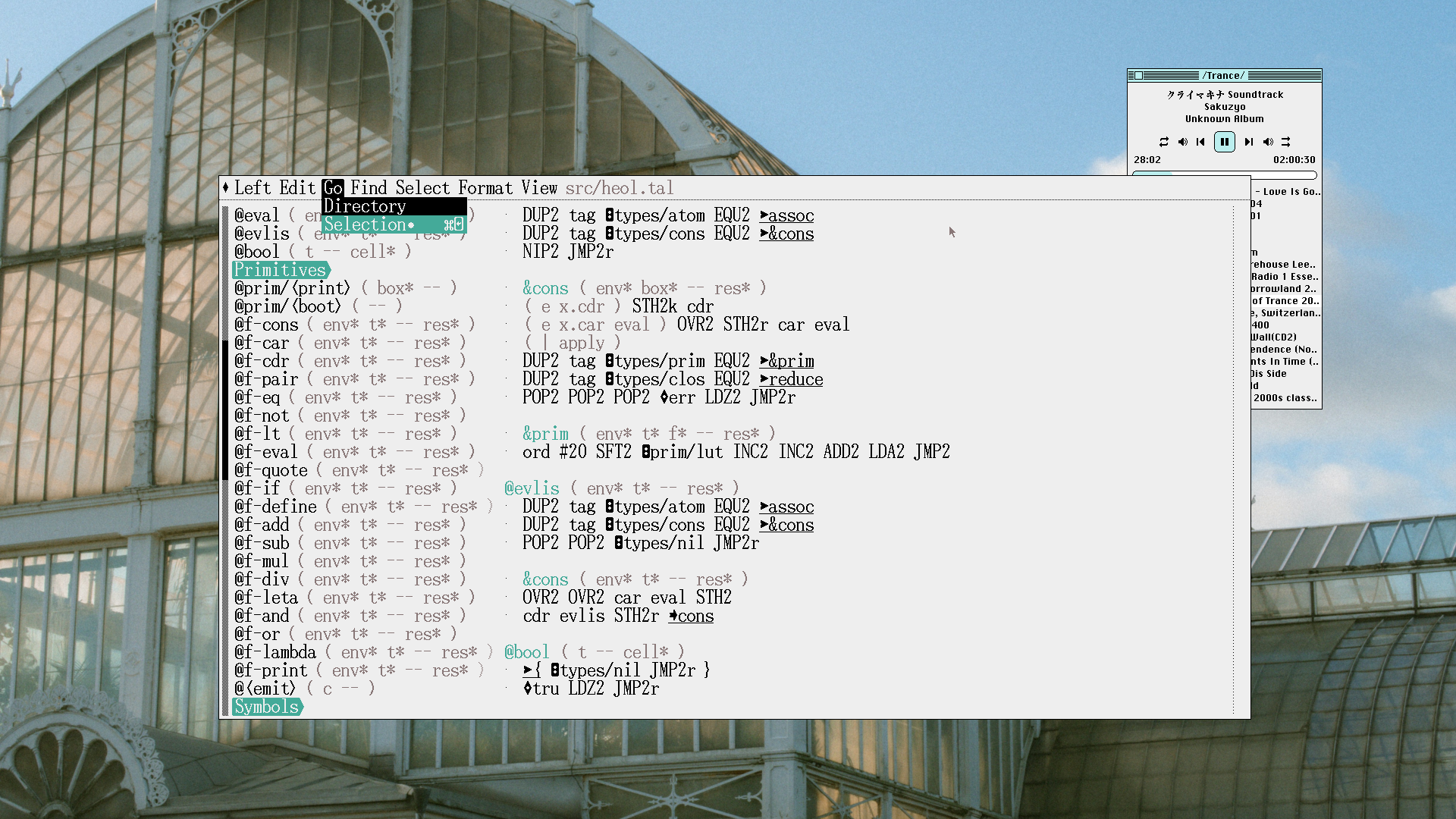
By entaloneralie 2026-03-1114:503 reply This was so nice to read, I've been trying to encourage my friends to write their own editors, there's something really nice about the process of working within your own tool. I've used my own text editor(it's call Left) for nearly 10 years, it took time to get it just right, but I iterated over the years(using Left to edit Left) but that time I spent putting it together is paid back 20x by the joy it gives me opening it and working in it in the morning.
I'd do it all over again if I had to.
I'm 19 years into using my own ("aoeui"), and it's one of the best things I ever did for my own productivity.
By entaloneralie 2026-03-1117:121 reply hell yeah that's awesome, I wish I had that insight when I was your age so I didn't waste my time editor hoping for 5 years.
By entaloneralie 2026-03-1117:311 reply Oh damn, I very much misread your message as "I'm 19 and using my own-"
Yeah, okay you have 10 years of dogfooding ahead of me X)
Sorry. Still, goals.
By rkomorn 2026-03-1117:33 They could've started writing it in the womb. I don't think you were categorically wrong...
What were the features that were most important to you in your text editor? Did you try to build it for multiple types of workflows?
By entaloneralie 2026-03-1117:061 reply One of the first thing I added was Leap keys-type search, I didn't want modes.
- Leap keys: https://www.youtube.com/watch?v=o_TlE_U_X3c
The second was pragma-mark navigation, so I can always see a overview of the codebase.
- navbar: https://assets.merveilles.town/media_attachments/files/116/2...
I also wanted a local copy buffer specific to the project I work on, so I could easily manage multiple copies of the clipboard data(it's part of how I work).
By chambored 2026-03-1217:20 I've never seen a leap mode like this. It seems pretty intuitive.
By marssaxman 2026-03-1123:31 Indeed - I've been using my personal editor for over a decade now. It's a good and comfortable feeling to spend your work day in a tool which fits you perfectly.
By ivanjermakov 2026-03-1113:561 reply I went the same path of writing a text editor from scratch. There are a lot of moving parts, so I tried to outsource as much features as possible - LSP for intellisense, tree-sitter for highlighting and syntax-aware features, fzf for search and file handling, etc. I also tried to design it so that it can be tweaked to one's needs with simple code changes, suckless-style.
It was indeed a pain using it for the first few weeks, where every 5 minutes I found some bug and had to go back and fix it, instead of steadily working on some other project. Good news is more bugs you fix, less bugs is left.
By zesterer 2026-03-1114:17 Nice work! And yes, that gradual acceleration of productivity where your fixes and tweaks from the past compound on your ability to get things done in the future is a great feeling.